✓ Regular driver updates can boost FPS by 10-20% in many games.
✓ Overclocking safely can provide a significant performance uplift, especially for CPUs and GPUs.
✓ Background processes consume valuable resources; closing them can free up RAM and CPU cycles.
✓ Proper cooling is crucial to prevent thermal throttling and maintain consistent performance.
How It Works
1
Assess Your Current Performance
Before making changes, benchmark your current system. This provides a baseline to measure the impact of your optimizations.
2
Implement Software Optimizations
Focus on driver updates, operating system tweaks, and in-game settings. These are often the easiest and most impactful changes.
3
Consider Hardware Upgrades/Tweaks
Evaluate if components like RAM, storage, or even the GPU are bottlenecks. Minor hardware tweaks like proper cooling can also yield significant results.
4
Monitor and Refine
Continuously monitor your system's performance and temperatures after changes. Adjust settings as needed for optimal stability and performance.
Unleashing Your PC's Potential: Essential Software Optimizations
Photo: Ali Creative / Pexels
To truly understand how to optimize gaming PC performance, we must first dive deep into the software landscape that governs your system. Many gamers overlook the profound impact that properly configured software can have on their gaming experience, often jumping straight to hardware upgrades when simple tweaks could yield similar, if not better, results. This section will guide you through the critical software adjustments necessary to unlock your PC's full potential.
### Driver Updates: The Foundation of Performance
Your graphics card (GPU), chipset, and other peripherals rely on drivers to communicate effectively with your operating system. Outdated or corrupted drivers are a leading cause of performance bottlenecks, stuttering, and even crashes. Always prioritize updating your GPU drivers directly from the manufacturer's website (NVIDIA, AMD, Intel). These companies regularly release optimized drivers for new game titles and general performance improvements. Don't rely solely on Windows Update; it often provides generic or older versions. Similarly, ensure your chipset drivers are up-to-date, as they manage communication between your CPU, RAM, and other components, impacting overall system efficiency. Regularly checking for these updates is a simple yet powerful step in optimizing your gaming PC. Learn more about driver management.
### Operating System Configuration for Gaming
Windows, by default, isn't always configured for peak gaming performance. Several settings can be adjusted to prioritize gaming processes and reduce background resource consumption.
* **Game Mode:** Windows 10 and 11 feature a 'Game Mode' (Settings > Gaming > Game Mode) designed to prioritize your game by preventing Windows Update from installing drivers and sending notifications. While its impact can be subtle, it's a quick toggle worth enabling.
* **Power Plan:** Ensure your power plan is set to 'High Performance' or 'Ultimate Performance' (accessible via Control Panel > Hardware and Sound > Power Options). This prevents your CPU and other components from throttling down to save power, ensuring they always run at their maximum clock speeds. Be mindful that this increases power consumption and heat, but for dedicated gaming sessions, it's essential.
* **Background Apps:** Many pre-installed Windows apps and third-party applications run in the background, consuming valuable CPU cycles and RAM. Go to Settings > Privacy > Background apps and turn off any applications you don't need running constantly. The fewer background processes, the more resources your game has.
* **Visual Effects:** While modern PCs can handle Windows' visual flair, disabling some non-essential visual effects can free up minor GPU resources. Search for 'Adjust the appearance and performance of Windows' and select 'Adjust for best performance' or customize to your preference.
### In-Game Settings: The Fine-Tuning Process
Optimizing your in-game settings is perhaps the most direct way to impact FPS and visual quality. It's a delicate balance between fidelity and performance. Start by understanding what each setting does:
* **Resolution:** This is the most significant performance killer or booster. Lowering the resolution dramatically increases FPS but sacrifices visual clarity. Native resolution is always ideal, but if performance is critical, consider a slight reduction.
* **Texture Quality:** This impacts VRAM usage. If your GPU has ample VRAM (8GB+), you can usually set this high. If you're VRAM-limited, lower it to prevent stuttering.
* **Anti-aliasing (AA):** Techniques like MSAA, TAA, FXAA smooth jagged edges. They are often very demanding. TAA offers a good balance of quality and performance, but if you're struggling, try FXAA or disable it entirely.
* **Shadows:** Shadows are notoriously performance-intensive. Lowering shadow quality or resolution can yield significant FPS gains with a moderate visual impact.
* **Draw Distance/View Distance:** Affects how far objects and terrain are rendered. Reducing this can help CPU-bound scenarios, but might impact immersion.
* **Post-processing Effects:** Bloom, motion blur, depth of field, and other post-processing effects can be demanding. Experiment with disabling them individually to see their impact.
Always use your game's built-in benchmark (if available) or an external FPS counter (like MSI Afterburner or NVIDIA GeForce Experience's overlay) to measure the impact of each setting change. Start with a balanced preset (e.g., 'High' or 'Medium') and then tweak individual settings, prioritizing those that offer the best performance-to-visual quality ratio. Remember, the goal is smooth, consistent gameplay, not necessarily ultra-high FPS if it comes at the cost of stability or visual artifacts. This meticulous approach to in-game settings is fundamental to how to optimize gaming PC performance effectively.
Hardware Hot Rodding: Upgrades, Overclocking, and Cooling
Photo: Andrey Matveev / Pexels
While software optimizations provide a fantastic foundation, understanding your hardware and how to tweak or upgrade it is equally crucial for maximizing gaming performance. This section delves into the physical components of your PC, exploring how strategic upgrades, careful overclocking, and robust cooling solutions contribute to a superior gaming experience.
### Strategic Hardware Upgrades: Identifying Bottlenecks
Before blindly buying new components, it's vital to identify your system's bottleneck. Is your CPU holding back your powerful GPU, or is slow RAM limiting your CPU's potential? Monitoring tools like MSI Afterburner, HWMonitor, or Task Manager can help you pinpoint this during gameplay. Look at CPU usage, GPU usage, and RAM usage. If your GPU is consistently at 99-100% usage while your CPU is lower, your GPU is likely the limiting factor. If your CPU is maxed out and your GPU is underutilized, a CPU upgrade might be in order. If RAM is consistently near 100% and you're experiencing stuttering, more RAM is a good idea.
* **Graphics Card (GPU):** This is typically the most impactful upgrade for gaming performance. A newer, more powerful GPU will directly translate to higher frame rates and better visual fidelity. Research current-generation cards that fit your budget and ensure compatibility with your motherboard and power supply.
* **Processor (CPU):** While less critical than the GPU for raw FPS in many games, a strong CPU is essential for high refresh rate gaming, open-world titles, and games with complex physics or AI. Upgrading your CPU often requires a new motherboard if you're changing generations (e.g., Intel to AMD, or older generation Intel to newer Intel).
* **RAM (Random Access Memory):** Aim for at least 16GB of DDR4 or DDR5 RAM for modern gaming. The speed (MHz) and timings (CL) also matter. Faster RAM can significantly boost CPU performance, especially for Ryzen processors. Ensure you're running your RAM in dual-channel mode for optimal performance, as specified by your motherboard manual.
* **Storage (SSD vs. HDD):** While an SSD (Solid State Drive) won't directly increase your in-game FPS, it dramatically improves load times for games and the operating system. NVMe SSDs are the fastest, followed by SATA SSDs, and then traditional HDDs. Having your operating system and frequently played games on an SSD is a non-negotiable optimization for a snappy gaming experience.
### Overclocking: Pushing Components to Their Limits
Overclocking involves increasing the clock speed of your CPU or GPU beyond their factory settings to achieve higher performance. This can yield significant FPS gains, but it requires careful execution and understanding of the risks involved. Always proceed with caution and research specific guides for your hardware.
* **CPU Overclocking:** Requires a 'K' series Intel CPU or any AMD Ryzen CPU, along with a compatible motherboard (e.g., Z-series for Intel, X-series or B-series for AMD) and a robust cooling solution. You'll typically adjust core voltage and multiplier in your BIOS/UEFI. Stress test extensively to ensure stability.
* **GPU Overclocking:** Easier and generally safer than CPU overclocking. Tools like MSI Afterburner or EVGA Precision X1 allow you to increase core clock, memory clock, and power limits. Monitor temperatures closely and test thoroughly with benchmarks and demanding games.
**Warning:** Overclocking can void warranties, increase heat output, and potentially shorten component lifespan if not done correctly. Always research and understand the process fully before attempting.
### The Importance of Cooling: Preventing Thermal Throttling
High temperatures are the enemy of performance. When components get too hot, they automatically reduce their clock speeds (thermal throttling) to prevent damage, leading to a significant drop in FPS and stuttering. Effective cooling is paramount to maintain consistent, optimal performance.
* **CPU Cooler:** The stock coolers included with some CPUs are often inadequate for gaming, especially if you plan to overclock. Invest in a good air cooler (e.g., Noctua, be quiet!, Cooler Master) or an All-in-One (AIO) liquid cooler for superior heat dissipation.
* **Case Airflow:** Ensure your PC case has good airflow. This means strategically placed intake fans (front, bottom) and exhaust fans (rear, top). Clean dust filters regularly to prevent dust buildup, which impedes airflow. A well-ventilated case allows fresh, cool air to enter and hot air to exit efficiently.
* **Thermal Paste:** Over time, the thermal paste between your CPU/GPU and their respective coolers can dry out and become less effective. Reapplying fresh, high-quality thermal paste every few years can significantly improve heat transfer and lower temperatures. This is a crucial, yet often overlooked, aspect of how to optimize gaming PC performance through hardware maintenance.
Advanced Tweaks and System Maintenance for Peak Performance
Photo: Nathan b Caldeira / Pexels
Beyond the fundamental software and hardware considerations, a truly optimized gaming PC benefits from advanced tweaks and diligent system maintenance. These often-overlooked steps can squeeze out additional performance, improve system stability, and ensure your rig remains a gaming powerhouse for years to come. Mastering these techniques is an integral part of understanding how to optimize gaming PC performance comprehensively. Discover more PC maintenance tips.
### Fine-Tuning Your Operating System for Gaming Prowess
Even after basic OS configurations, there are deeper dives you can take to streamline Windows for gaming.
* **Disable Unnecessary Services:** Windows runs many background services that aren't critical for gaming. While disabling essential services can cause system instability, identifying and stopping non-gaming related services (e.g., 'Print Spooler' if you don't print, 'Fax' service, 'Windows Search' if you use a third-party search tool) can free up minor CPU and RAM resources. Access 'services.msc' from the Run dialog (Win+R) to manage them. Be cautious and research each service before disabling it.
* **Disk Cleanup and Defragmentation (for HDDs):** Regularly running Disk Cleanup (search 'Disk Cleanup' in Windows) removes temporary files, system logs, and other junk that can accumulate and slow down your system. If you still use a traditional Hard Disk Drive (HDD) for game storage, defragmenting it (search 'Defragment and Optimize Drives') can improve load times, as it organizes data for faster access. **However, never defragment an SSD; it reduces its lifespan.** SSDs manage data internally and don't benefit from defragmentation.
* **Windows Update Management:** While crucial for security, Windows updates can sometimes install at inconvenient times or introduce temporary performance hiccups. You can schedule active hours to prevent updates during gaming sessions (Settings > Update & Security > Windows Update > Change active hours) or temporarily pause updates. Always ensure updates are eventually installed for security and stability.
* **Page File Management:** The page file (virtual memory) is where Windows stores data that doesn't fit in RAM. While Windows usually manages this well, some users find performance benefits from manually setting a fixed page file size, typically 1.5x your RAM. Access this via System Properties > Advanced > Performance Settings > Advanced > Virtual memory.
### Network Optimization: Lag-Free Gaming
Your hardware might be top-tier, but a poor network connection can ruin your gaming experience. Optimizing your network is a critical, often overlooked, aspect of how to optimize gaming PC performance.
* **Wired Connection (Ethernet) vs. Wi-Fi:** Always prioritize a wired Ethernet connection over Wi-Fi for gaming. Ethernet provides lower latency, more stable bandwidth, and is less susceptible to interference than Wi-Fi. If Wi-Fi is your only option, ensure your adapter supports modern standards (Wi-Fi 6/6E), and your router is optimally placed.
* **Quality of Service (QoS) on Router:** Many modern routers offer QoS settings, allowing you to prioritize network traffic for specific devices or applications. Configure your router to give priority to your gaming PC and the games you play. This ensures your game's data packets are sent first, reducing lag.
* **DNS Settings:** Experiment with public DNS servers like Google DNS (8.8.8.8, 8.8.4.4) or Cloudflare DNS (1.1.1.1, 1.0.0.1). These can sometimes offer faster resolution times than your ISP's default DNS, potentially reducing initial connection lag to game servers.
* **Close Bandwidth-Hogging Applications:** Ensure no other applications are downloading large files, streaming high-resolution video, or performing backups in the background while you're gaming. These can consume significant bandwidth and increase your ping.
### Regular System Cleaning and Maintenance
Physical and digital clutter can both degrade performance. A clean PC runs cooler and more efficiently.
* **Dust Removal:** Dust is an insulator and accumulates rapidly inside your PC, clogging fans and heatsinks. Use compressed air to regularly clean dust from your CPU cooler, GPU heatsink, case fans, and power supply. Do this every 3-6 months, or more frequently if you have pets or live in a dusty environment. Always hold fan blades when spraying to prevent over-spinning them.
* **Cable Management:** While not directly impacting performance, good cable management improves airflow within your case, contributing to better cooling. It also makes future upgrades and maintenance easier.
* **Software Clean-up:** Regularly uninstall games and applications you no longer use. Use a reputable uninstaller tool (like Revo Uninstaller) to ensure all leftover files and registry entries are removed. This keeps your storage tidy and your system lean.
By diligently implementing these advanced tweaks and maintaining your system, you'll ensure your gaming PC not only performs at its peak but also maintains that performance consistently over time, offering a truly optimized and enjoyable gaming experience.
Common Mistakes to Avoid When Optimizing Your Gaming PC
Photo: RDNE Stock project / Pexels
While the pursuit of peak performance is admirable, it's easy to fall into common traps that can lead to instability, reduced lifespan, or even damage to your components. Knowing what *not* to do is just as important as knowing how to optimize gaming PC performance. Let's look at some pitfalls to sidestep.
### Over-Aggressive Overclocking Without Proper Testing
One of the most tempting ways to boost performance is overclocking. However, pushing your CPU or GPU too far without adequate voltage, cooling, or stability testing is a recipe for disaster. This can lead to:
* **System Instability:** Frequent crashes, blue screens of death (BSODs), or game freezes.
* **Component Degradation:** Excessive voltage and heat can shorten the lifespan of your hardware.
* **Thermal Throttling:** If your cooling can't keep up, your components will aggressively downclock, negating any performance gains and potentially leading to worse performance than stock.
**Tip:** Always increase clock speeds incrementally, test stability with benchmarks (e.g., Prime95 for CPU, Heaven Benchmark for GPU), and monitor temperatures meticulously. Never exceed safe voltage limits recommended by experienced users or manufacturers.
### Neglecting Cooling and Airflow
A powerful PC generates heat, and heat is the enemy of performance and longevity. Ignoring proper cooling can lead to:
* **Thermal Throttling:** As mentioned, components will slow down to prevent overheating, causing significant FPS drops and stuttering.
* **Reduced Lifespan:** Prolonged exposure to high temperatures accelerates component degradation.
* **Loud Fan Noise:** Fans will spin at maximum RPM trying to compensate, creating an annoying amount of noise.
**Tip:** Invest in a good CPU cooler, ensure your case has a balanced fan setup (intake/exhaust), and regularly clean dust filters and heatsinks. Good cable management also contributes to better airflow.
### Running Too Many Background Applications
Even with a powerful CPU and ample RAM, numerous background applications can steal valuable resources from your game. This includes:
* **Web Browsers with Many Tabs:** Chrome, Firefox, and Edge can be RAM hogs.
* **Cloud Storage Services:** OneDrive, Google Drive, Dropbox constantly syncing files.
* **Communication Apps:** Discord, Steam, Epic Games Launcher, without proper configuration, can consume resources.
* **Antivirus Scans:** Running a full system scan during gameplay.
**Tip:** Close unnecessary applications before gaming. Configure gaming clients (Steam, Epic) to disable overlays and background updates. Adjust your antivirus to pause scans or reduce resource usage during gaming. Use Task Manager to identify resource-intensive background processes.
### Not Updating Drivers Regularly (or Updating Too Frequently)
Drivers are critical, but there's a balance to strike:
* **Outdated Drivers:** Lead to performance bottlenecks, compatibility issues, and missed optimizations for new games.
* **Blindly Updating to Every Beta Driver:** Beta drivers can sometimes introduce instability or new bugs. While often beneficial, it's wise to check reviews before installing.
**Tip:** Stick to stable, WHQL-certified drivers from your GPU manufacturer. Update every 1-2 months, or specifically when a new major game title releases that you plan to play. Always perform a clean installation of GPU drivers using DDU (Display Driver Uninstaller) for best results.
### Using Unreliable or Shady 'PC Optimizer' Software
Be wary of generic 'PC cleaner' or 'game booster' software that promises miraculous performance gains. Many of these programs are:
* **Ineffective:** They often perform basic tasks you can do manually or through Windows' built-in tools.
* **Harmful:** Some can delete essential files, modify registry settings incorrectly, or even install malware.
* **Resource Hogs:** They can consume resources themselves, counteracting any supposed benefits.
**Tip:** Rely on reputable tools like MSI Afterburner (for monitoring/overclocking), your GPU manufacturer's software (GeForce Experience, AMD Adrenalin), and Windows' own utilities. If a tool sounds too good to be true, it probably is.
By being aware of these common pitfalls, you can navigate the world of PC optimization safely and effectively, ensuring your efforts to how to optimize gaming PC performance yield positive, stable results.
Comparison
Feature
Best Option
Alternative 1
Alternative 2
Driver Updates
GPU Manufacturer Site
Windows Update
Driver Booster (Caution)
Storage
NVMe SSD
SATA SSD
7200 RPM HDD
RAM Capacity
16GB (32GB for power users)
8GB (Minimum)
64GB+ (Overkill for gaming)
Cooling
AIO Liquid Cooler
High-End Air Cooler
Stock Air Cooler (Basic)
Power Plan
Ultimate Performance
High Performance
Balanced
What Readers Say
★★★★★
"This guide completely transformed my gaming experience. My old rig was struggling with new titles, but after following the software optimization steps, I saw a consistent 20-30 FPS boost. It's like having a new PC without buying anything!"
Alex R. · Seattle, WA
★★★★★
"I was hesitant to try overclocking, but the clear, step-by-step instructions here gave me the confidence. My GPU now runs cooler and faster, and I haven't experienced a single crash. Truly an expert-level guide!"
Brenda K. · Austin, TX
★★★★★
"My loading times for Cyberpunk 2077 were unbearable on my old HDD. Following the advice to switch to an NVMe SSD and properly configure my OS, I'm now loading into the game in seconds. What a difference this guide made!"
Chris P. · Miami, FL
★★★★★
"The information on network optimization was incredibly helpful. My Wi-Fi ping was always an issue, but after adjusting my router's QoS settings, online gaming feels much smoother. Some sections were a bit technical, but overall very valuable."
Dana L. · Denver, CO
★★★★★
"As a budget gamer, I appreciate how much focus was put on software tweaks before hardware. I managed to squeeze out significantly more performance from my existing components without spending a dime. This is truly how to optimize gaming PC performance on a budget."
Ethan M. · Chicago, IL
Frequently Asked Questions
What is the single most impactful way to optimize gaming PC performance?
The single most impactful way is often ensuring your graphics card drivers are up-to-date and your in-game settings are properly balanced for your hardware. After that, identifying and upgrading your system's primary bottleneck (usually the GPU) will yield the biggest gains.
Will optimizing my PC damage it or void my warranty?
Most software optimizations are safe and will not damage your PC or void your warranty. However, aggressive overclocking, if done incorrectly, can potentially reduce component lifespan or void warranties. Always research and proceed with caution for hardware tweaks.
How often should I clean my gaming PC for optimal performance?
It's recommended to clean your gaming PC, especially dust from fans and heatsinks, every 3 to 6 months. If you have pets or live in a dusty environment, more frequent cleaning (every 1-2 months) may be necessary to maintain optimal cooling and prevent thermal throttling.
Is buying a 'gaming booster' software worth the cost?
Generally, no. Most 'gaming booster' software offers minimal to no real performance improvement over what you can achieve manually through Windows settings and proper driver management. Many are ineffective, and some can even introduce stability issues or bloatware, making them a poor investment.
How does an SSD improve gaming performance compared to an HDD?
An SSD (Solid State Drive) significantly improves gaming performance by drastically reducing load times for games, levels, and the operating system due to its much faster data read/write speeds. While it won't directly increase your in-game FPS, it greatly enhances the overall responsiveness and snappiness of your gaming experience.
Who should prioritize optimizing their gaming PC?
Anyone looking to get the most out of their current hardware, improve frame rates, reduce lag, or simply enjoy a smoother, more responsive gaming experience should prioritize optimizing their gaming PC. It's especially beneficial for those on a budget who can't immediately upgrade or for competitive gamers seeking every possible advantage.
Are there any risks associated with changing Windows power plan settings?
Setting your power plan to 'High Performance' or 'Ultimate Performance' is generally safe. The primary 'risks' are increased power consumption and potentially higher temperatures, as your CPU and GPU will operate at higher clock speeds more consistently. Ensure your cooling solution is adequate to handle the extra heat.
What are the future trends in gaming PC optimization?
Future trends include more sophisticated AI-driven upscaling technologies (like DLSS, FSR, XeSS) for better performance at higher resolutions, tighter integration of hardware and software (e.g., DirectStorage for faster game loading), and advancements in cooling solutions. Cloud gaming optimization will also become more prevalent.
Ready to unlock the true power of your gaming machine? By applying the comprehensive strategies detailed in this guide on how to optimize gaming PC performance, you're not just tweaking settings; you're transforming your entire gaming experience. Start optimizing today and dive into a world of smoother, faster, and more immersive gameplay!

 Photo: Ali Creative / Pexels
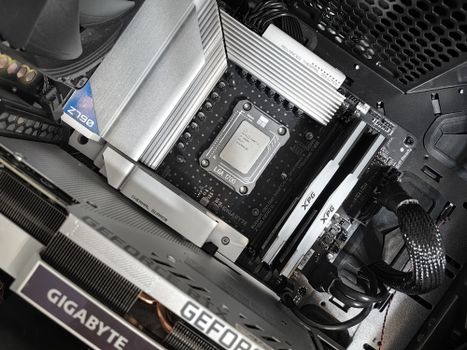 Photo: Andrey Matveev / Pexels
 Photo: Nathan b Caldeira / Pexels
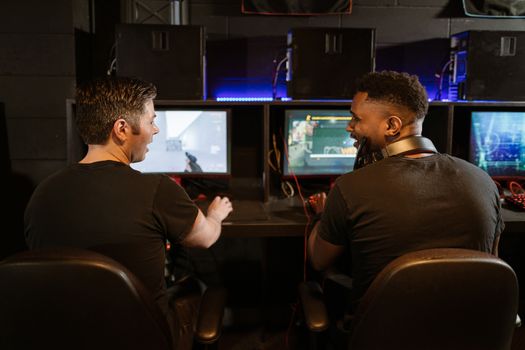 Photo: RDNE Stock project / Pexels