How to Improve Gaming Performance PC: The Ultimate Guide
August 22, 2026 14 min read 2,769 words
Transform your gaming experience with proven strategies to maximize frame rates and responsiveness on your PC.
Boost Your FPS Now
Understanding Your PC's Gaming Potential: A Deep Dive into Hardware
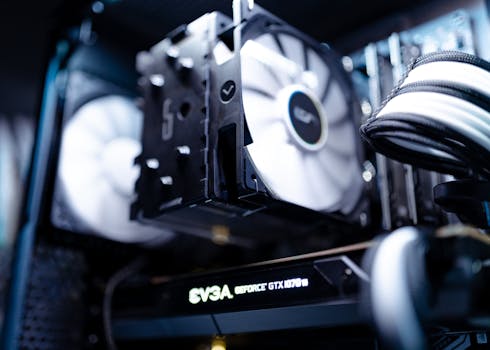 Photo: Martin Lopez / Pexels
To truly understand how to improve gaming performance PC, you must first grasp the fundamentals of your existing hardware. Your PC's performance in games is a complex interplay between several key components: the Central Processing Unit (CPU), the Graphics Processing Unit (GPU), Random Access Memory (RAM), and storage. Each plays a critical role, and a bottleneck in any one can limit the overall experience. The CPU, often called the 'brain' of the computer, handles game logic, physics, and AI. While not always the primary factor in raw frame rates, a weak CPU can certainly cause stuttering or low minimum frame rates, especially in open-world or CPU-intensive strategy games. Ensure your CPU is adequately cooled, as thermal throttling can severely reduce its performance. Monitoring CPU usage during gameplay can reveal if it's struggling to keep up with your GPU. Tools like MSI Afterburner or HWMonitor can provide real-time data on CPU temperature and utilization.
The GPU, or graphics card, is arguably the most crucial component for gaming performance. It's responsible for rendering all the visuals you see on your screen. A powerful GPU allows for higher resolutions, more detailed textures, and complex graphical effects. Keeping your GPU drivers updated is paramount; new driver versions often include optimizations specifically for the latest games, sometimes yielding significant performance boosts. We'll delve into driver updates in more detail later, but suffice it to say, neglecting this step is leaving free performance on the table. When considering upgrades, the GPU is typically the first component gamers look to, as it offers the most noticeable improvement in visual fidelity and frame rates. However, a powerful GPU paired with an old, slow CPU can lead to a 'CPU bottleneck,' where the GPU isn't being fully utilized.
RAM, or system memory, acts as a temporary workspace for your CPU and GPU. While 8GB is often considered the minimum for modern gaming, 16GB is the sweet spot for most titles, allowing for smooth multitasking and preventing memory-related stutters. The speed of your RAM (measured in MHz) and its configuration (single vs. dual channel) also impact performance. Dual-channel memory, achieved by installing two identical RAM sticks, effectively doubles the memory bandwidth and can provide a noticeable FPS increase, especially for Ryzen CPUs. Don't underestimate the impact of storage either. While an SSD (Solid State Drive) won't directly increase your in-game FPS, it will dramatically reduce load times for games and the operating system itself. Moving your most frequently played games to an SSD can save you minutes of waiting per session. Newer NVMe SSDs offer even faster speeds than traditional SATA SSDs, further cutting down load times. Understanding these components is the first step in formulating a targeted strategy for how to improve gaming performance PC effectively. For more general PC maintenance tips, check out
this guide to keeping your gaming rig in top shape.
Software Optimization: Unlocking Hidden Performance Gains
 Photo: Ali Creative / Pexels
Beyond hardware, a vast amount of performance can be squeezed out of your PC through meticulous software optimization. This often overlooked aspect is critical for anyone wondering how to improve gaming performance PC without spending a dime on new parts. The first and most impactful step is keeping your drivers up-to-date. Graphics card drivers (NVIDIA, AMD) are released regularly, often coinciding with new game releases, and contain crucial optimizations, bug fixes, and performance enhancements. Make it a habit to check for new drivers every few weeks or enable automatic notifications. Using tools like GeForce Experience for NVIDIA or AMD Radeon Software for AMD can streamline this process. Don't forget about other drivers too, like chipset drivers, which can sometimes impact overall system stability and performance.
Next, let's talk about operating system settings. Windows, by default, isn't always configured for peak gaming performance. Navigate to 'Graphics Settings' in Windows 10/11 and add your game executables, then set them to 'High performance.' This ensures your dedicated GPU is prioritized for that application. Furthermore, adjust your power plan to 'High Performance' or 'Ultimate Performance' (if available) under 'Power & Sleep settings' in the Control Panel. While these settings consume more power, they prevent your CPU and GPU from downclocking during intense gaming sessions. Disable unnecessary startup programs through Task Manager's 'Startup' tab; every program running in the background consumes precious CPU cycles and RAM that could be allocated to your game.
In-game settings are your most direct control over performance. Start with your monitor's native resolution. Then, experiment with graphical presets (Low, Medium, High, Ultra). Features like Anti-Aliasing, Shadow Quality, Volumetric Lighting, and Ray Tracing are often the biggest performance hogs. Reducing these can significantly boost FPS. Texture Quality often has less impact on FPS if you have sufficient VRAM, but can make a game look much better. Test settings one by one to see their impact. Many games also offer a 'render scale' option, which allows rendering at a lower resolution internally and then upscaling, providing a visual compromise for higher FPS. Always prioritize frame rate over ultra-high fidelity, especially in competitive games where responsiveness is key.
Finally, consider game-specific launchers and overlays. While some, like Steam's FPS counter, are useful, others can consume resources. Disable overlays you don't use, such as those from Discord, Xbox Game Bar (unless you actively use its features), or even some GPU software overlays, if you suspect they are causing performance issues. Ensure Windows Game Mode is enabled; it aims to optimize your PC for gaming by prioritizing game processes. Regular optimization of these software aspects is a continuous process that yields consistent results in how to improve gaming performance PC.
Hardware Maintenance & Strategic Upgrades for Peak Performance
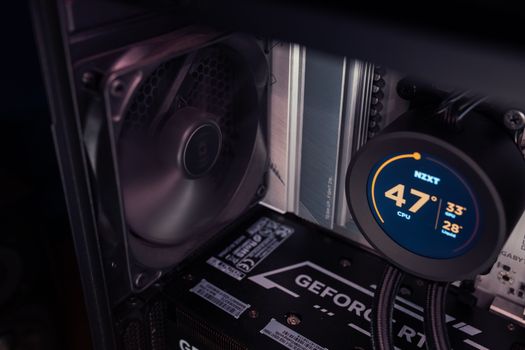 Photo: Matheus Bertelli / Pexels
While software optimization can get you far, understanding hardware maintenance and strategic upgrades is paramount for sustained and elevated gaming performance. Neglecting the physical aspects of your PC can lead to thermal throttling, reduced lifespan, and inconsistent performance. One of the simplest yet most effective maintenance tasks is keeping your PC clean. Dust accumulation inside your case, on fan blades, and particularly on heatsinks (CPU and GPU) acts as an insulator, trapping heat. This leads to higher temperatures, causing your components to slow down to prevent damage – a phenomenon known as thermal throttling. Regularly (every 3-6 months, depending on your environment) open your PC case and use compressed air to blow out dust from fans, radiators, and heatsinks. Pay special attention to the GPU cooler and CPU cooler. Ensure good airflow within your case by managing cables and ensuring intake and exhaust fans are correctly oriented. Proper cable management isn't just for aesthetics; it prevents air blockages.
Monitoring your temperatures is critical. Tools like HWMonitor, MSI Afterburner, or NZXT CAM can display real-time temperatures for your CPU and GPU. Under load, your CPU should ideally stay below 85°C and your GPU below 80°C. Consistently higher temperatures indicate a cooling issue that needs addressing, whether it's dust, poor airflow, or even dried-out thermal paste on your CPU. Reapplying thermal paste every few years can significantly improve CPU cooling efficiency. This is a slightly more advanced task but can yield noticeable temperature drops.
When it comes to upgrades, an SSD is a non-negotiable for any gaming PC still running on an HDD. The speed difference in loading times is transformative. If you already have a SATA SSD, consider upgrading your primary drive to an NVMe SSD for even faster speeds, particularly if your motherboard supports it. RAM is another area for strategic upgrades. If you're running 8GB, moving to 16GB (preferably in a dual-channel configuration, e.g., 2x8GB sticks) will provide a smoother experience in most modern titles and allow for better multitasking. Check your motherboard's specifications for maximum RAM capacity and supported speeds.
The most impactful hardware upgrade for gaming remains the GPU. If your budget allows, upgrading your graphics card will provide the most significant leap in frame rates and visual quality. However, always consider your CPU when upgrading your GPU to avoid creating a bottleneck. A very powerful new GPU paired with an older, slower CPU won't perform to its full potential. Conversely, a high-end CPU with an entry-level GPU will also result in underperformance. Aim for a balanced system where CPU and GPU are well-matched. Finally, consider a higher refresh rate monitor (144Hz, 240Hz) if your PC can consistently push high frame rates. A high FPS is only truly felt on a monitor that can display those frames. Regular maintenance combined with smart, targeted upgrades are the pillars of how to improve gaming performance PC over its lifespan. For detailed guides on specific component upgrades, consult dedicated
hardware review sites.
Advanced Tweaks & Common Pitfalls to Avoid for Optimal Gaming
 Photo: RDNE Stock project / Pexels
Beyond the foundational steps, there are several advanced tweaks and common pitfalls to be aware of when optimizing your PC for gaming. These can further enhance your experience and prevent frustrating performance issues. One such tweak is disabling or minimizing background applications. Even seemingly innocuous programs like web browsers with many tabs, messaging apps, or cloud storage sync clients can consume CPU cycles, RAM, and network bandwidth. Before launching a demanding game, close everything you don't absolutely need. For a more aggressive approach, consider using a dedicated 'game mode' software (beyond Windows Game Mode) or creating a custom power profile that aggressively halts background processes.
Another advanced consideration is overclocking. Overclocking involves manually increasing the clock speed of your CPU or GPU beyond their factory settings to gain extra performance. While it can yield noticeable FPS gains, it comes with risks: increased heat generation, potential system instability, and possibly voiding warranties. If you choose to overclock, do so cautiously, incrementally, and ensure you have adequate cooling. Monitor temperatures rigorously. For most users, optimizing software and ensuring proper cooling will provide sufficient gains without the risks of overclocking.
Virtual Memory, also known as the paging file, is another area to consider. While Windows usually manages this well, some users find performance gains by setting a custom size, particularly if they have less RAM. However, for systems with 16GB or more RAM and an SSD, letting Windows manage it is often the best approach. Incorrectly setting virtual memory can actually hurt performance.
Common pitfalls to avoid include:
* **Running outdated drivers:** As mentioned, this is a cardinal sin. Always keep your graphics drivers current.
* **Ignoring thermal issues:** High temperatures are a silent killer of performance and hardware longevity. Address them proactively.
* **Overloading your startup:** Too many programs launching with Windows hog resources from the get-go.
* **Unnecessary visual effects:** Windows' visual effects (e.g., animations, shadows) consume resources. You can disable many of these in 'System Properties > Advanced > Performance Settings'.
* **Fragmented HDDs:** If you still use an HDD for games, defragmenting it regularly can improve load times, though it won't impact in-game FPS as much as other optimizations. SSDs should never be defragmented.
* **Bloatware:** Pre-installed software from PC manufacturers can consume resources. Consider a fresh Windows installation or uninstalling unnecessary programs.
* **Incorrect monitor refresh rates:** Ensure your monitor is set to its highest refresh rate in Windows Display Settings.
By addressing these advanced tweaks and avoiding common mistakes, you can further refine your system and ensure you're getting the absolute best out of your hardware, consistently answering the question of how to improve gaming performance PC.