✓ Input lag is the delay between your action and its on-screen representation.
✓ It's measured in milliseconds (ms) and lower is always better.
✓ Multiple components contribute to total input lag, including peripherals, PC/console, and display.
✓ Even small amounts of input lag can significantly impact competitive gaming performance.
How It Works
1
Action Initiation
You press a button on your controller or mouse, initiating an input signal. This signal is electrical or wireless.
2
Signal Transmission & Processing
The signal travels to your gaming device (PC/console), where the game engine processes it. This involves recognizing the input and calculating its effect.
3
Frame Generation
The processed input is then incorporated into the next frame the graphics card renders. This frame includes your action's visual outcome.
4
Display Output
The rendered frame is sent to your monitor or TV, which then displays it. The total time from your initial press to the visual on-screen is the input lag.
Understanding the Fundamentals: What is Input Lag in Gaming?
Photo: Yan Krukau / Pexels
At its core, understanding what is input lag in gaming is crucial for any serious player. Input lag refers to the total delay between the moment you perform an action (like pressing a button on your controller or clicking your mouse) and the moment that action is visibly represented on your screen. This seemingly minuscule delay, often measured in milliseconds (ms), can be the difference between a headshot and a miss, a perfectly timed dodge and a fatal blow, or a victory and a defeat. It’s not just about how fast your internet is, but a complex chain of events involving your hardware and software.
Think of it as a communication pipeline. When you issue a command, that command has to travel through several stages before it becomes a visual reality. First, your input device (mouse, keyboard, controller) needs to register your action. Then, that signal must be transmitted to your gaming system (PC or console). The system then processes this input, incorporating it into the game's logic and rendering the next frame of animation or action. Finally, this rendered frame is sent to your display (monitor or TV), which then has its own processing time before it can illuminate the pixels to show you what just happened. Every single one of these stages introduces a tiny amount of delay, and when added together, they constitute your total input lag.
Many factors contribute to this cumulative delay. Your peripherals, such as a wireless mouse versus a wired one, can have different inherent latencies. Your gaming platform itself – whether it’s a high-end PC with a powerful GPU or an older console – will process inputs at varying speeds. Crucially, your display device plays a massive role; some TVs, for instance, have significantly higher input lag than dedicated gaming monitors due to their internal image processing features. Even the game you're playing and its engine can affect how quickly inputs are registered and translated into on-screen events.
For casual gamers, a few extra milliseconds might go unnoticed. However, for those engaged in competitive gaming, especially in genres like first-person shooters (FPS), fighting games, or rhythm games, every millisecond counts. A high input lag can make your character feel sluggish, unresponsive, and disconnected from your commands, leading to frustration and a tangible disadvantage against opponents with lower latency setups. It can severely impact your reaction time, aiming precision, and overall enjoyment. Understanding these foundational elements is the first step in identifying and mitigating input lag in your personal gaming setup.
Deconstructing the Delay: Key Sources of Input Lag
Photo: Andrey Matveev / Pexels
To effectively combat input lag, it's essential to pinpoint its various origins. Input lag isn't a single monolithic entity but rather a sum of delays occurring at different points in the signal chain. Each component in your gaming setup contributes, to varying degrees, to the overall latency you experience. By understanding these sources, you can systematically address them and work towards a more responsive gaming experience.
One significant contributor is your input device itself. Wireless peripherals, while offering convenience, often introduce more latency than their wired counterparts. This is due to the time taken for the signal to be encoded, transmitted wirelessly, received, and then decoded. While modern wireless technologies have vastly improved, a wired connection still generally offers the lowest possible latency for mice, keyboards, and controllers. The quality and polling rate of your device also matter; a high-polling-rate mouse or controller sends updates more frequently, reducing the time between your physical action and the system receiving that information.
The gaming platform – your PC or console – is another crucial link. The time it takes for the CPU and GPU to process your input, execute game logic, and render a new frame is a major factor. If your system is struggling to maintain a high and consistent frame rate (FPS), it means there are longer intervals between frames, inherently increasing the time until your input's effect can be displayed. A powerful CPU and GPU, coupled with sufficient RAM, are vital for minimizing this processing delay. Overburdened systems, background applications, or inefficient game code can all exacerbate this problem.
Perhaps one of the most impactful sources of input lag is the display device itself. Monitors and TVs have internal processing that takes time to convert the incoming video signal into the image you see. This 'display lag' or 'processing delay' can range from a few milliseconds on a high-end gaming monitor to tens or even hundreds of milliseconds on some older or feature-rich TVs. Features like 'motion smoothing,' 'dynamic contrast,' and advanced image upscaling, while potentially making movies look better, add significant processing overhead and thus, input lag. Gaming monitors are specifically designed to minimize this, often foregoing such features or offering a dedicated 'Game Mode' to bypass them.
Even the cables you use can play a minor role, though less significant than other factors. High-quality, compliant HDMI or DisplayPort cables ensure optimal signal integrity, preventing potential micro-delays or signal degradation. Furthermore, the game engine itself and its internal rendering pipeline can introduce latency. Some games are simply better optimized than others, and even within the same game, different settings can affect how quickly inputs are registered and translated onto the screen. Recognizing these varied sources empowers you to diagnose and tackle input lag effectively.
The Impact on Gameplay: Why Lower Latency Matters
Photo: Ron Lach / Pexels
For many casual players, the concept of input lag might seem abstract or even negligible. After all, what difference can a few milliseconds make? However, for anyone aspiring to improve their gaming performance, especially in competitive scenarios, understanding why lower latency truly matters is paramount. The difference between winning and losing, or simply enjoying a smoother, more immersive experience, often hinges on minimizing this delay.
In fast-paced genres like First-Person Shooters (FPS) or fighting games, reaction time is king. A high input lag directly translates to a slower reaction time. Imagine a scenario in an FPS where an enemy peeks around a corner. If your input lag is 50ms, by the time your brain registers the enemy, you click to shoot, and that shot appears on screen, your opponent with 10ms of input lag has a significant head start. They might have already fired, or even moved back into cover, before your shot even registers. This isn't about your physical reflexes; it's about the system's responsiveness to those reflexes. Lower input lag means your physical reaction is translated into an in-game action almost instantaneously, giving you a fairer chance and a competitive edge.
Beyond just reaction time, input lag profoundly affects aiming precision and movement fluidity. In games requiring precise cursor placement or delicate character movement, high latency makes everything feel 'floaty' or 'disconnected.' Your crosshair might not land exactly where you intended, or your character might overshoot a jump. This leads to missed shots, botched maneuvers, and a general feeling of fighting against the controls rather than with them. Conversely, a low-latency setup allows for pixel-perfect aiming and incredibly responsive movement, making the game feel like an extension of your own thoughts and actions.
The psychological impact is also significant. When a game feels unresponsive, it can lead to frustration, reduced enjoyment, and even physical strain as you overcompensate for the delays. This mental fatigue can negatively impact your performance over long gaming sessions. Conversely, a highly responsive setup fosters a sense of control and immersion, allowing you to focus on strategy and execution rather than battling the system. This makes the gaming experience far more satisfying and less taxing.
Moreover, in rhythm games or those with strict timing windows, even a small amount of input lag can make a game unplayable or impossible to master. Successfully hitting notes or executing combos relies on precise timing, and any delay between your input and the game's registration can throw off your rhythm entirely. Therefore, for serious gamers across various genres, actively seeking to minimize input lag isn't just a luxury; it's a fundamental requirement for achieving peak performance and maximizing enjoyment.
Practical Strategies: How to Minimize Input Lag in Your Setup
Photo: RDNE Stock project / Pexels
Minimizing input lag requires a multi-pronged approach, addressing each potential source of delay in your gaming chain. While completely eliminating input lag is impossible, you can significantly reduce it to a point where it becomes imperceptible or negligible, dramatically improving your gaming experience. Here are practical strategies you can implement:
**1. Optimize Your Peripherals:**
* **Go Wired:** Whenever possible, use wired mice, keyboards, and controllers. Wired connections generally offer lower latency than wireless ones. If wireless is a must, choose high-quality, low-latency wireless peripherals from reputable brands.
* **High Polling Rate:** Ensure your mouse and controller are set to the highest possible polling rate (e.g., 1000Hz). This means they report their position or button presses to the system more frequently.
**2. Fine-Tune Your Display:**
* **Enable Game Mode:** If your TV has a 'Game Mode,' activate it. This setting typically bypasses most of the TV's internal image processing, significantly reducing input lag. On monitors, these features are usually off by default or labeled as 'low input lag' modes.
* **Prioritize Gaming Monitors:** For serious gamers, a dedicated gaming monitor is almost always superior to a TV in terms of input lag and response time. Look for monitors with low input lag ratings (often below 10ms, ideally 1-4ms).
* **Disable Post-Processing:** Turn off any unnecessary image enhancement features on your display like motion smoothing, dynamic contrast, noise reduction, or sharpness enhancers. These add processing time.
* **Match Refresh Rate:** Ensure your game's frame rate and your display's refresh rate are synchronized (e.g., 144 FPS on a 144Hz monitor). Technologies like G-Sync or FreeSync can help maintain smooth visuals and reduce tearing without adding significant lag.
**3. Enhance Your Gaming System:**
* **Maintain High FPS:** The higher and more consistent your frame rate, the lower the input lag from your system. Upgrade your CPU/GPU, optimize game settings (lower demanding graphical options), and ensure sufficient RAM to achieve stable high FPS.
* **Close Background Applications:** Unnecessary programs running in the background consume system resources, potentially impacting game performance and increasing processing delay.
* **Update Drivers:** Keep your graphics card drivers, chipset drivers, and peripheral drivers up to date. Manufacturers often release updates that improve performance and reduce latency.
* **Optimize Operating System:** For PC gamers, use Windows' 'Game Mode,' disable unnecessary notifications, and adjust power settings to 'High Performance.'
**4. Network Considerations (for online gaming):**
* **Wired Internet Connection:** Use an Ethernet cable instead of Wi-Fi for online gaming. Wi-Fi introduces more latency and is prone to interference.
* **Stable Internet:** While not strictly input lag (it's network latency or 'ping'), a stable, low-ping internet connection is crucial for online responsiveness. Input lag combined with high ping creates a truly frustrating experience.
By systematically addressing these areas, you can create a gaming environment that is as responsive as possible, allowing your skills and reactions to shine without being hampered by invisible delays.
Comparison
Feature
Competitive Gaming Monitor
Standard Gaming Monitor
Modern Smart TV
Older Smart TV
Input Lag (ms)
1-5ms
5-20ms
10-40ms (Game Mode)
50-100+ms
Refresh Rate
144Hz-360Hz+
60Hz-144Hz
60Hz-120Hz
60Hz
Response Time (GtG)
1ms
1ms-5ms
5ms-20ms
20ms+
Adaptive Sync (VRR)
✓
✓ (most)
✓ (premium models)
✗
Image Processing Features
Minimal
Minimal
Extensive
Extensive
Price Point
High
Medium
Medium-High
Low-Medium
What Readers Say
★★★★★
"Before I truly understood what is input lag in gaming, I was blaming my reflexes. Switching to a high-refresh monitor and wired peripherals made an immediate, tangible difference. My K/D ratio in Warzone improved by 30%!"
Alex 'ApexPro' Chen · Los Angeles, CA
★★★★★
"This article was an eye-opener! I always gamed on my big-screen TV, not realizing how much input lag was holding me back. Enabling 'Game Mode' on my TV transformed the experience, making my fighting games feel incredibly responsive."
Sarah 'PixelQueen' Davies · Austin, TX
★★★★★
"I followed the advice here, particularly about optimizing my PC's frame rate and closing background apps. My system feels snappier, and I've noticed a significant improvement in my aiming consistency in Valorant. Highly recommend!"
Mike 'CtrlAltDefeat' Johnson · Chicago, IL
★★★★★
"While I can't afford a brand new gaming monitor right now, the tips on disabling TV post-processing and using a wired controller were really helpful. It's not perfect, but my games definitely feel smoother than before."
Emily 'GamerGirl' White · Miami, FL
★★★★★
"Even for retro gaming on emulators, minimizing input lag is key for accuracy. The principles discussed here about system processing and display lag apply universally, making my old favorites feel as sharp as they did on original hardware."
David 'RetroGamer' Lee · Seattle, WA
Frequently Asked Questions
What is the ideal input lag for competitive gaming?
For competitive gaming, an ideal total input lag is generally considered to be below 20 milliseconds (ms), with many pro players striving for under 10ms. The lower, the better, as even a few milliseconds can affect reaction times and precision in fast-paced games. This includes the cumulative lag from your input device, PC/console processing, and display.
Can I feel 10ms of input lag?
While the average human reaction time is around 200-250ms, experienced gamers can often discern differences as small as 10-20ms, especially in games requiring precise timing and quick reflexes. While 10ms might not be a deal-breaker for casual play, it can certainly be felt as a subtle unresponsiveness and impact high-level competitive performance.
How can I measure input lag in my setup?
Measuring total input lag accurately is challenging without specialized equipment. Some advanced monitors have built-in input lag testers. For a more general idea, you can use high-speed cameras to record your button press and the on-screen action, then count the frames. However, most gamers rely on optimizing known sources of lag and trusting reviews for specific hardware.
Is input lag the same as ping or latency?
No, input lag and ping (or network latency) are distinct, though both contribute to overall responsiveness. Input lag refers to the delay within your local system (from input to display). Ping refers to the time it takes for data to travel from your system to a game server and back. Both need to be low for an optimal online gaming experience.
Does a higher refresh rate monitor reduce input lag?
Yes, indirectly. A higher refresh rate (e.g., 144Hz vs. 60Hz) means the monitor can display new frames more frequently. If your system can consistently output frames at that higher rate, it reduces the time between a new frame being rendered and it being displayed, thus contributing to lower overall input lag, especially display lag.
Who should be most concerned about input lag?
Players engaged in competitive online multiplayer games, particularly in genres like FPS, fighting games, rhythm games, and real-time strategy (RTS), should be most concerned about input lag. Even single-player games where precision and timing are critical (e.g., character action games) can benefit significantly from minimized input lag.
Are there any risks to reducing input lag?
Generally, there are no significant risks. The main 'trade-off' might be losing some advanced image processing features on your TV (by enabling game mode) that enhance picture quality for movies but introduce lag. For dedicated gaming, these features are often detrimental anyway. Optimizing your PC/console for performance is also safe and beneficial.
What future trends might further reduce input lag?
Future trends include even faster display technologies (higher refresh rates, lower response times), advancements in wireless transmission protocols for peripherals, and further optimization of game engines and operating systems. Direct Neural Interface (DNI) technologies, while futuristic, represent the ultimate potential for zero-lag input.
Now that you understand what is input lag in gaming and its profound impact, it's time to take control. Implement these strategies to transform your gaming experience, achieving unparalleled responsiveness and a true competitive edge. Don't let invisible delays hold you back from peak performance.
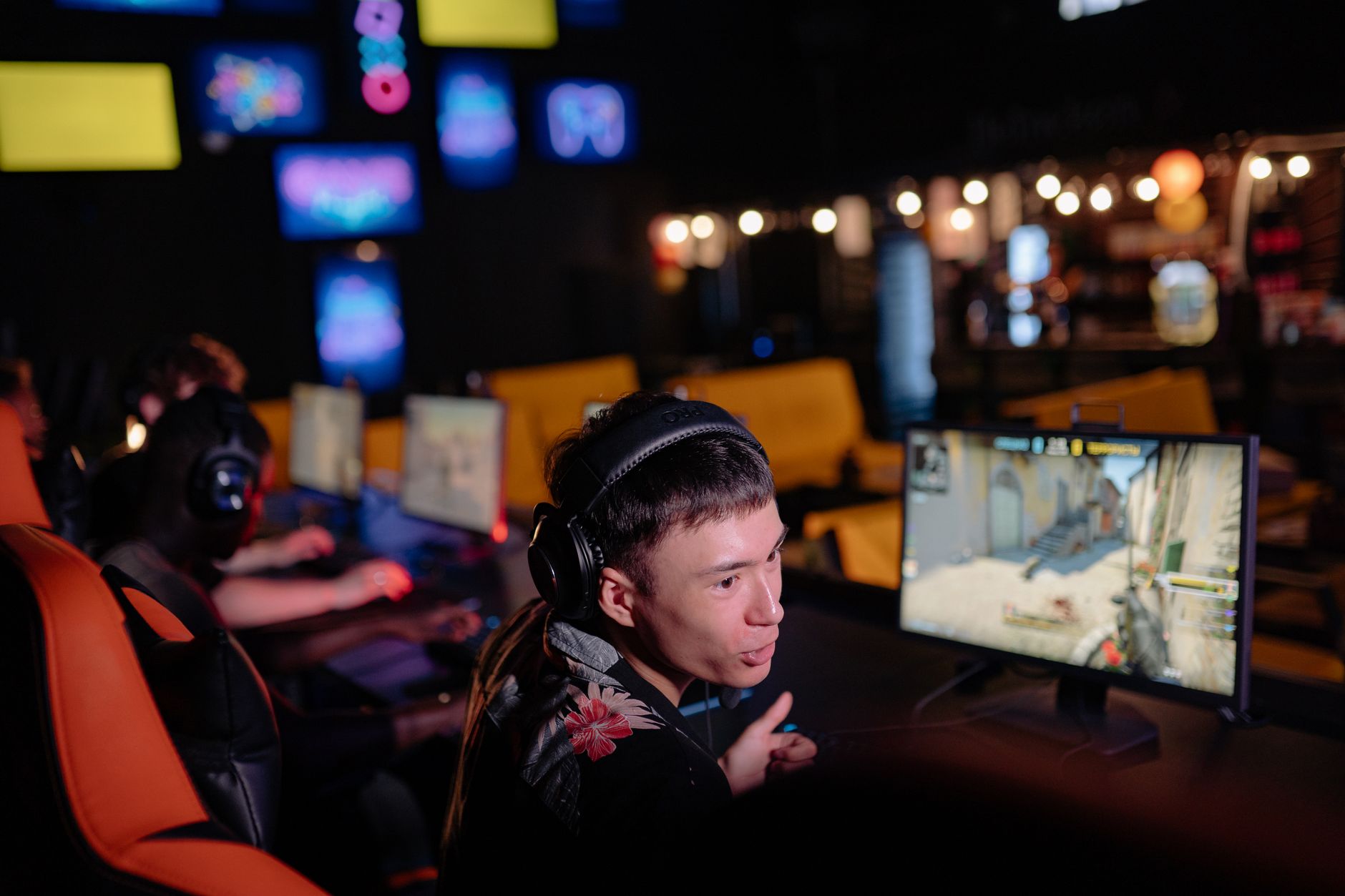
 Photo: Yan Krukau / Pexels
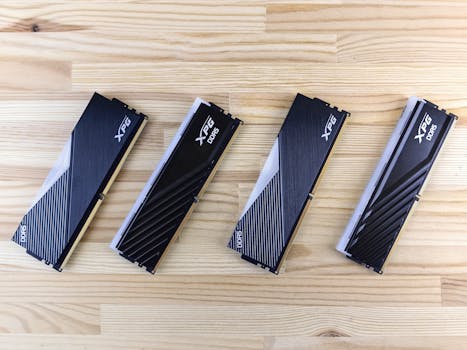 Photo: Andrey Matveev / Pexels
 Photo: Ron Lach / Pexels
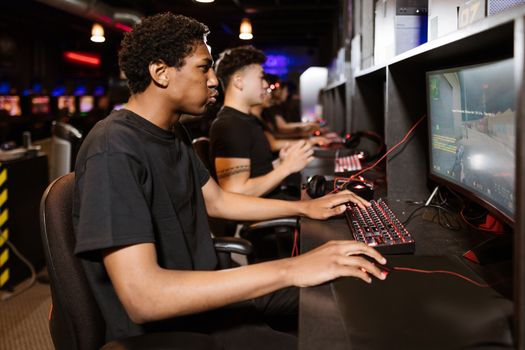 Photo: RDNE Stock project / Pexels