✓ Game stuttering in Windows 11 is often caused by driver issues, background processes, or power settings.
✓ Updating graphics drivers and Windows OS is the most crucial first step.
✓ Optimizing in-game settings and Windows power plans can significantly improve performance.
✓ Monitoring system resources helps identify bottlenecks causing stuttering.
How It Works
1
Identify the Root Cause
Use monitoring tools to pinpoint whether the stuttering is CPU, GPU, RAM, or storage-related. This diagnostic step is critical for targeted solutions.
2
Update & Optimize Drivers
Ensure all graphics, chipset, and audio drivers are up-to-date and correctly installed. Outdated drivers are a frequent culprit for performance issues.
3
Adjust Windows Settings
Tweak Windows 11 power options, disable unnecessary background apps, and adjust visual effects for better gaming performance. These system-level changes can free up valuable resources.
4
Configure In-Game Settings
Lowering demanding graphical options within the game itself can dramatically reduce stuttering, especially if your hardware is older. Experiment with settings like resolution and anti-aliasing.
Understanding the Causes of Game Stuttering in Windows 11
Photo: Andrey Matveev / Pexels
Game stuttering, characterized by inconsistent frame rates, brief freezes, or jerky movements, can quickly turn an immersive gaming experience into a frustrating ordeal. In Windows 11, several factors can contribute to this issue, making it crucial to understand the underlying causes before attempting a fix. One of the most prevalent culprits is outdated or corrupt graphics drivers. Your graphics card is the powerhouse behind rendering game visuals, and if its drivers aren't optimized for the latest Windows version or game updates, performance can suffer dramatically. This often manifests as micro-stutters that are hard to pinpoint but undeniably impact fluidity.
Another significant cause stems from background processes and resource contention. Windows 11, like its predecessors, runs numerous services and applications in the background, many of which consume CPU, RAM, and disk I/O. If these processes hog resources while you're gaming, your system won't have enough headroom to deliver consistent performance, leading to stuttering. Think of it like trying to run a sprint while carrying a heavy backpack – your full potential is hindered. Similarly, power management settings can play a critical role. If your system is set to an 'economy' or 'balanced' power plan, it might intentionally throttle your CPU and GPU to save energy, even when gaming, resulting in reduced clock speeds and, consequently, stuttering.
Hardware limitations are also a straightforward, though sometimes overlooked, cause. If your system's CPU, GPU, or RAM simply doesn't meet the recommended specifications for a demanding game, stuttering is almost inevitable. Even if it meets minimum requirements, pushing graphics settings too high can overwhelm the hardware. Disk I/O, especially with traditional Hard Disk Drives (HDDs) compared to Solid State Drives (SSDs), can also cause stuttering during asset loading or in open-world games where data is constantly streamed. Building a gaming PC with balanced components is key to avoiding these issues. Lastly, software conflicts, corrupted game files, or even an overloaded internet connection (for online games) can introduce performance hiccups. Identifying which of these factors is at play is the first step towards a smooth gaming experience on Windows 11.
Essential Driver and System Updates for Smoother Gaming
Photo: Andrey Matveev / Pexels
Addressing driver and system updates is arguably the most critical and often the easiest step in resolving game stuttering on Windows 11. Outdated drivers are like old maps for your hardware; they don't know the most efficient routes for the latest software. Your graphics card driver, whether from NVIDIA, AMD, or Intel, is paramount. These manufacturers frequently release new driver versions that include performance optimizations for new game titles, bug fixes, and general stability improvements specific to Windows 11. To update, visit your GPU manufacturer's official website, navigate to their driver download section, select your specific card model and operating system (Windows 11, 64-bit), and download the latest available driver. It's often recommended to perform a clean installation to remove any remnants of older drivers that might cause conflicts.
Beyond the graphics driver, don't neglect your chipset drivers. These drivers facilitate communication between your CPU, RAM, and other motherboard components. An outdated chipset driver can lead to inefficient data transfer and system bottlenecks, manifesting as stuttering. Visit your motherboard manufacturer's website (e.g., ASUS, MSI, Gigabyte, ASRock) and download the latest chipset drivers for your model. Similarly, ensure your audio drivers are up-to-date, as sometimes audio processing issues can indirectly impact game performance.
Windows 11 itself requires regular updates. Microsoft continuously releases patches, security fixes, and performance enhancements. Some of these updates specifically target gaming performance or resolve compatibility issues with certain hardware. To check for Windows updates, go to 'Settings' > 'Windows Update' and click 'Check for updates.' Install all available updates, including optional ones, and restart your system as prompted. It's also worth checking your BIOS/UEFI firmware. While less frequent, motherboard manufacturers occasionally release BIOS updates that improve system stability, memory compatibility, or CPU performance, which can indirectly help with stuttering. Consult your motherboard manual or manufacturer's website for instructions on how to safely update your BIOS, as this process requires caution. Ensuring all these foundational elements are current provides a stable and optimized environment for your games, laying the groundwork for a stutter-free experience.
Optimizing Windows 11 Settings for Peak Gaming Performance
Photo: Alexander Kovalev / Pexels
Once your drivers and system are updated, the next step involves fine-tuning Windows 11 itself to prioritize gaming. Several built-in settings can significantly impact performance. Start with the 'Game Mode' feature. Windows 11's Game Mode is designed to optimize your PC for gaming by dedicating system resources to your game and preventing Windows Update from installing drivers or sending restart notifications. To enable it, go to 'Settings' > 'Gaming' > 'Game Mode' and toggle it 'On'. While its effectiveness can vary, it's generally a beneficial feature to keep active.
Next, adjust your power plan. By default, Windows often uses a 'Balanced' power plan, which can limit CPU and GPU performance to conserve energy. For gaming, you want maximum power. Go to 'Settings' > 'System' > 'Power & battery' > 'Power mode' and select 'Best performance'. For even finer control, search for 'Edit power plan' in the Start menu, then click 'Change advanced power settings'. Expand 'Processor power management' and ensure both 'Minimum processor state' and 'Maximum processor state' are set to 100% when plugged in. This ensures your CPU isn't throttled during intense gaming sessions.
Disable unnecessary background apps. Many applications launch at startup and continue running in the background, consuming valuable CPU and RAM resources. Go to 'Settings' > 'Apps' > 'Installed apps' and review what's running. For apps you don't need constantly, click the three dots next to their name and select 'Advanced options' to restrict their background app permissions. Additionally, check 'Task Manager' (Ctrl+Shift+Esc) > 'Startup apps' and disable any non-essential programs from launching with Windows.
Consider disabling visual effects. While Windows 11 looks slick, some of its aesthetic features can consume resources. Search for 'Adjust the appearance and performance of Windows' in the Start menu. Under the 'Visual Effects' tab, select 'Adjust for best performance' or customize by unchecking effects like 'Animate windows when minimizing or maximizing' and 'Fade or slide menus into view'. While these individual changes might seem minor, their cumulative effect can free up enough resources to noticeably reduce stuttering. For a deeper dive into optimizing your system, consider exploring guides on Windows 11 optimization for performance.
Advanced Troubleshooting and Prevention Tips for Stutter-Free Gaming
Photo: Ron Lach / Pexels
Beyond basic updates and system settings, several advanced troubleshooting steps and preventative measures can help maintain a stutter-free gaming experience on Windows 11.
* **Monitor System Resources:** Use tools like Task Manager (Ctrl+Shift+Esc), MSI Afterburner, or HWiNFO to monitor your CPU, GPU, RAM, and disk usage while gaming. Look for spikes or sustained high usage (near 100%) in any component, which indicates a bottleneck. If your GPU is at 99% and CPU is low, the GPU is the bottleneck, and you might need to lower graphics settings. If your CPU is maxed out, it's struggling to feed data to the GPU. This diagnostic step is invaluable for targeted fixes.
* **Disable Overlays:** In-game overlays from platforms like Steam, Xbox Game Bar, Discord, or NVIDIA GeForce Experience can sometimes cause performance issues or conflicts, leading to stuttering. Try disabling them one by one to see if it resolves the problem. For Xbox Game Bar, go to 'Settings' > 'Gaming' > 'Xbox Game Bar' and toggle it off.
* **Disable Hardware-accelerated GPU Scheduling:** While designed to improve performance, this Windows 11 feature can sometimes introduce stuttering on certain hardware configurations. To disable it, go to 'Settings' > 'System' > 'Display' > 'Graphics' > 'Change default graphics settings' and toggle 'Hardware-accelerated GPU scheduling' off. Test your games afterward.
* **Check for Overheating:** Overheating components (CPU or GPU) will throttle their performance to prevent damage, causing severe stuttering. Use monitoring software to check temperatures. Ensure your PC has adequate cooling, clean dust from fans, and consider reapplying thermal paste if temperatures are consistently high.
* **Verify Game Files:** Corrupted game files can lead to crashes and stuttering. Most game launchers (Steam, Epic Games, Xbox App) have an option to verify the integrity of game files, which checks for and repairs any corrupted data.
* **Use a High-Performance SSD:** If your games are installed on a traditional HDD, upgrading to an SSD (NVMe or SATA) can drastically reduce loading times and eliminate stuttering related to asset streaming in open-world games.
* **Network Optimization for Online Games:** For online games, network lag can mimic stuttering. Ensure a stable wired (Ethernet) connection if possible, close bandwidth-hogging applications, and restart your router/modem.
* **Reinstall Problematic Games:** As a last resort, if stuttering persists in a specific game after trying all other solutions, a clean reinstallation of the game might resolve deeply embedded issues.
By systematically applying these advanced tips and preventative measures, you can create a highly optimized gaming environment in Windows 11, significantly reducing or eliminating game stuttering and ensuring a consistently smooth experience.
Comparison
Feature
Best Option
Alternative 1
Alternative 2
Graphics Drivers
Latest Official (Clean Install)
Windows Update Driver
Older Stable Version
Power Plan
Best Performance
High Performance
Balanced (Modified)
Storage Type
NVMe SSD
SATA SSD
HDD (7200 RPM)
Game Mode
✓
✓
✗
What Readers Say
★★★★★
"My games on Windows 11 were constantly micro-stuttering, making competitive play impossible. Following the driver update and power plan advice in this guide completely eliminated the problem, it's like a new PC!"
Alex R. · Seattle, WA
★★★★★
"I thought I needed a new graphics card, but this guide showed me how to optimize my existing setup. Adjusting the in-game settings and disabling background apps made a huge difference, no more annoying freezes."
Sarah J. · Austin, TX
★★★★★
"The tip about checking for overheating was a game-changer. My CPU was throttling, and after cleaning the fans, my stuttering issues vanished. Thank you for saving my gaming experience!"
Mike P. · Orlando, FL
★★★★★
"Most of the advice here was very helpful, especially the Windows settings optimizations. Still getting occasional stutters in one very demanding game, but it's significantly better than before."
Jessica L. · Denver, CO
★★★★★
"As someone who streams, stuttering was a nightmare. This guide's detailed breakdown of background processes and overlays helped me identify and fix the resource conflicts. My streams are now buttery smooth!"
David K. · Chicago, IL
Frequently Asked Questions
Why is my game stuttering specifically on Windows 11?
Windows 11 introduces new features and system overheads compared to Windows 10, which can sometimes lead to stuttering if drivers aren't optimized or if background processes are consuming too many resources. Hardware-accelerated GPU scheduling and VBS (Virtualization-Based Security) are also common culprits that might need adjustment.
Will disabling Game Mode help fix stuttering?
While Game Mode is designed to improve performance, its effectiveness can vary. On some systems or with certain games, it might inadvertently cause issues. If you've tried other fixes, disabling Game Mode temporarily to test for improvements is a valid troubleshooting step.
How do I know if my graphics drivers are the cause?
If stuttering started after a Windows update, a new game installation, or if you haven't updated your drivers in a long time, they are a prime suspect. Performing a clean installation of the latest drivers from your GPU manufacturer's website is the best way to rule this out.
Is upgrading my RAM or CPU necessary to fix stuttering?
Not always. Many stuttering issues can be resolved through software optimizations, driver updates, and settings adjustments. However, if your RAM or CPU consistently hits 90-100% usage during gaming (monitored via Task Manager), then a hardware upgrade might be necessary, especially for newer, more demanding titles.
Does V-Sync help or hurt with game stuttering?
V-Sync synchronizes your game's frame rate with your monitor's refresh rate, which can eliminate screen tearing but sometimes introduces input lag or micro-stutter if your frame rate fluctuates significantly below your monitor's refresh rate. If you have a FreeSync or G-Sync monitor, use those technologies instead of traditional V-Sync for the best results.
Who should follow these steps to fix game stuttering?
Anyone experiencing inconsistent frame rates, periodic freezes, or general choppiness while playing games on a Windows 11 PC, regardless of their hardware specifications, can benefit from following these troubleshooting and optimization steps.
Are there any risks to optimizing Windows 11 for gaming?
Most optimizations like driver updates, power plan changes, or disabling background apps carry minimal to no risk. However, manually adjusting BIOS settings or using third-party overclocking tools requires caution. Always back up important data and follow official guides for advanced tweaks to avoid system instability.
What are the future trends in fixing game stuttering on Windows?
Future trends include more sophisticated AI-driven game mode optimizations, better integration of hardware-accelerated scheduling, and continued improvements in driver efficiency. Technologies like DirectStorage will also reduce loading-related stuttering by optimizing data transfer from SSDs to GPUs, making for even smoother experiences.
Don't let game stuttering ruin your Windows 11 gaming experience. Take control with our comprehensive guide and implement these solutions today for consistently smooth and immersive gameplay. Your perfect gaming session awaits!

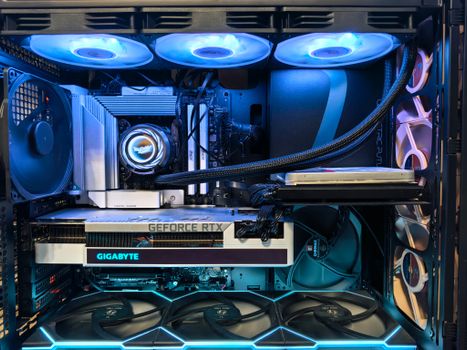 Photo: Andrey Matveev / Pexels
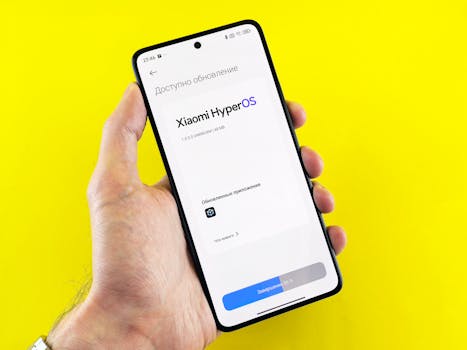 Photo: Andrey Matveev / Pexels
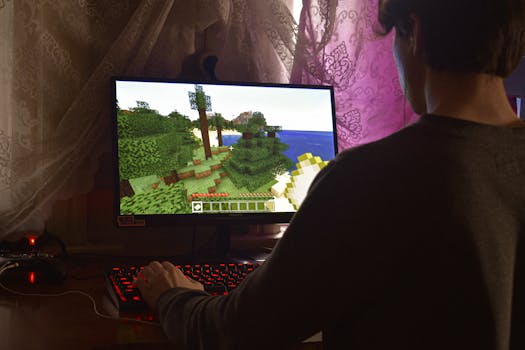 Photo: Alexander Kovalev / Pexels
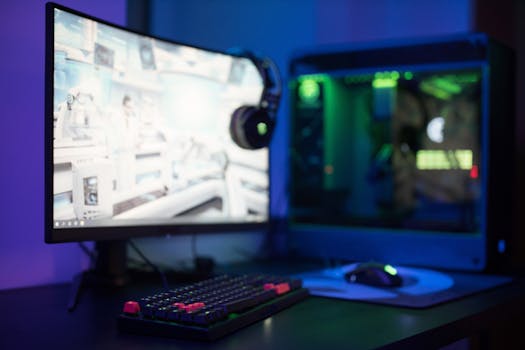 Photo: Ron Lach / Pexels